Grabbing digital tickets right before a big concert or game feels awesome. Then your phone won’t load the ticket, the site crashes, or the scan turns red at the gate. Frustrating is an understatement.
Digital tickets usually show up as QR codes or PDFs inside an event app, email link, or a mobile wallet. They help you skip paper, but they also add new failure points, like app glitches, bad transfers, or fraud.
You’re not alone in trying to fix digital ticket issues fast. In 2026, common complaints keep clustering around five themes: site crashes during sales, bots and scalpers, fake or invalid tickets, transfer failures, and pricing surprises from changing demand.
The good news? Most problems have simple fixes. You just need the right moves, in the right order, and a backup plan in case your first attempt fails.
Next, you’ll learn how to handle ticket site crashes, avoid fake digital tickets, troubleshoot access and scanning problems, and build smart habits so you’re not stuck panicking again.
Beat Ticket Site Crashes During Busy Sales
Ticket sites crash when too many people hit them at once, especially during major on-sales. In 2022, for example, Ticketmaster faced heavy traffic when bots also poured in during a major Eras Tour sale, and the pattern still shows up in 2026.
If you keep seeing loading spinners, missing pages, or tickets that “vanish” mid-checkout, don’t assume the worst immediately. Often, it’s a queue or checkout timing issue, not a total system failure.

Here are practical ways to fix ticket site crash moments during high-demand sales:
- Buy earlier if you can. Later hours often mean more competition and slower load times.
- Use incognito (one browser). This can reduce login or cache conflicts. Don’t open 10 incognito tabs.
- Check the queue behavior before refreshing. If the queue has a “wait room” system, refreshing may reset your position.
- Limit refreshes. Refreshing repeatedly can make you look like a bot and trigger delays.
- Use one or two devices. If your phone struggles on cellular, try Wi-Fi (or vice versa).
- Use official status updates. Many ticket companies post queue and crash notes on their official social accounts.
If your queue looks stuck, you can also compare your situation against guide-style troubleshooting. For example, see Ticketmaster Queue Not Moving? Fix It Fast for common queue-stall causes and recovery steps.
One extra tip: if you joined the waiting room early, the queue system may not behave how you expect. It often works on a schedule, not a smooth “real time” clock.
The fastest path is usually patience plus the right device, not endless page refreshes.
Real-time infrastructure can help (auto-scaling, load balancing), but it still can’t fully absorb sudden spikes plus bot traffic. That’s why your next best move is using apps and virtual queues when available.
Use Apps and Virtual Queues to Skip the Chaos
Websites can choke because they try to do too much at once: session creation, anti-bot checks, inventory lookups, and checkout all collide. Event apps often handle traffic better because they can push you into a queue earlier and keep your session stable longer.
When the platform offers virtual waiting rooms, treat them like a line at a box office. You’re not “doing something wrong.” You’re waiting for your turn.
Try this flow during the on-sale window:
- Download the official event app ahead of time. Don’t install it while the sale is live.
- Enable notifications so you don’t miss queue timing updates.
- Join the queue right at sale time using the official app link.
- Avoid unofficial “queue tools” that ask for passwords or claim they can “guarantee tickets.”
Ticketmaster, for instance, promotes a virtual waiting system called Smart Queue to prioritize eligible fans and help keep bots out. If you want to understand how that queue is positioned, check Ticketmaster Smart Queue.
Apps also reduce one common problem: you don’t have to fight a slow website while entering your payment info. That matters when every second counts.
Still, apps can fail too. That’s why your setup before the sale starts matters just as much as your queue choice.
Prep Your Setup Before the Sale Starts
Think of ticket day like a flight. You wouldn’t show up without checking your gate. For digital tickets, prep is how you prevent most “fix digital ticket issues” emergencies.
Here’s a simple pre-sale setup routine that takes about 15 minutes, and pays off fast:
- Update your browser or app the day before.
- Test your login (email and password) before the on-sale.
- Clear your cache once, if your device has been acting weird.
- Stabilize your internet (Wi-Fi if it’s reliable).
- Turn off VPN if the site blocks it.
- Keep just a couple tabs open. Too many can slow your device.
Then, during the sale, avoid “thrash.” Keep your finger off the refresh button unless the page is truly frozen. If the checkout page spins, wait a few seconds, then try again once.
If you bought tickets before, you already know the painful truth: the hardest part is not clicking “buy.” It’s doing it while the system is overloaded.
And overload is exactly where bots and fake tickets start causing trouble.
Outsmart Bots, Scalpers, and Fake Digital Tickets
Bots don’t just make ticket buying harder. They distort the whole experience. In 2026, bots make up 51% of all internet use, and the biggest growth comes from AI tools that crawl fast for data.
That matters for ticket sales because bot traffic can break the fairness of inventory. In some cases, automated traffic can distort sales data by up to 83%.
Fake tickets are another huge problem. Scams show up as “too good to be true” listings, PDFs that never unlock, or QR codes that scan but fail validation. Also, transfers can create a “last-mile identity problem,” where the organizer can’t confirm the true attendee after ticket movement.
So how do you avoid fake digital tickets and bot attacks without losing your mind?
Start with where you buy. Then verify what you receive.
Spot Counterfeit Tickets Before You Buy
The easiest counter to fraud is your eyes plus basic checks. Counterfeit tickets often look normal at first. Then you zoom in and notice the details don’t match real delivery.
Use these red flags as a quick filter:
| Red flag | Why it matters |
|---|---|
| Price is far below face value | Scammers love “instant deal” pressure |
| Seller only shares a static PDF | Real tickets often require secure delivery and app access |
| QR code looks “always the same” | Some real passes use dynamic or time-bound validation |
| No real refund or support | Legit sellers and platforms handle disputes |
| Seller uses vague “verification” claims | If they can’t prove it, don’t pay |
Before you pay, look for signs of secure delivery. Many legitimate platforms use watermarks, expiration logic, or app-only access. Even if you can’t explain it all, you can compare it to what official emails and wallet passes look like.
To see examples of how dummy ticket scams work and common warning signs, read Dummy Ticket Scams: 7 Red Flags to Spot Fake Services Before You Pay (2026).
It’s not just events either. Airlines and travel can see similar fraud patterns, especially when someone pushes you to screenshot “proof” instead of using official tools.
Report Scams and Use Anti-Bot Tools
If you suspect you’re being targeted by bots or a scam listing, don’t keep it private. Reporting helps, and it may protect other fans.
On the legal side, the BOTS Act (Better Online Ticket Sales Act of 2016) aims to stop bots from buying more tickets than allowed per person. Complaints about online ticket scalpers and bot-fueled shortages remain a recurring political topic, including arguments presented in public hearings and posts like Online Ticket Scalpers Are Exploiting Americans.
For consumer protection enforcement and broader scam priorities, you can also track FTC updates. One example summary is FTC Signals Enforcement Priorities for Consumer Protection in 2026.
On the practical side, most ticket and airline systems use anti-bot tools like CAPTCHAs and purchase limits. If a flow triggers identity checks, don’t try to “outsmart” it by switching to random resellers. Instead, stick to official sites and follow the steps exactly.
If you’re buying for travel (or flying), keep a strict rule: use official boarding pass tools, not screenshots from strangers. Now let’s fix the issues that happen after you buy.
Fix Access, Transfer, and Scan Glitches Quickly
Digital tickets fail in specific ways. You might not open the ticket in your wallet. A transfer link might break. Or the gate scanner might reject your pass because the file is outdated or the wrong person’s device has the ticket.
Start with the basics. Most scan failures come from simple device issues (wrong app, outdated software, network hiccups), or from tickets that did not properly transfer.
Also, don’t forget this point: for airlines and venues, the ticket you show needs to match the validation system. Screenshots can fail because systems expect secure, updated tokens.
Common “troubleshoot digital ticket access” moves that work fast:
- Update the app (event app or airline app).
- Clear cache once, if the app keeps looping.
- Restart your phone if your wallet shows a blank pass.
- Re-download the ticket from the original order email or confirmation.
- Try a different device, if the first one won’t display.
If you need scan help for mobile boarding passes, these troubleshooting guides can help you reason through “won’t scan” moments:
That keeps your options open when the gate line is already forming.
Step-by-Step App and Wallet Troubleshooting
When a digital ticket won’t load, follow a tight sequence. It saves time, and it prevents you from repeating the same action that didn’t work the first time.
- Update your software (event app, airline app, and your mobile OS).
- Log out and back in to the ticket provider app.
- Open the ticket from the original confirmation (don’t rely only on a cached wallet view).
- Re-download the ticket so your device gets the fresh token.
- Try a different wallet view (for example, Apple Wallet vs. Google Wallet) if available.
- Switch networks (Wi-Fi to cellular, or the reverse).
If you’re flying and a specific airline app doesn’t show the boarding pass, you can find scenario notes like Delta mobile boarding pass not showing.
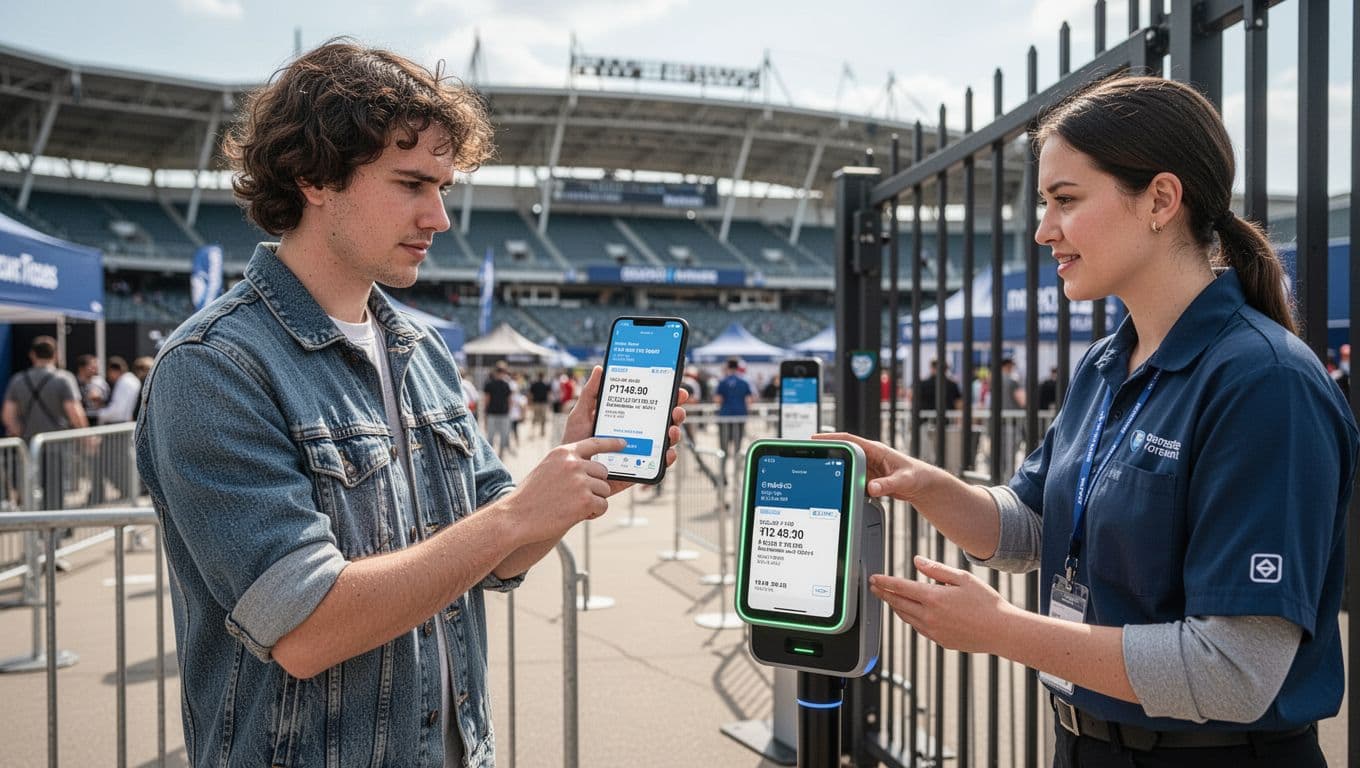
What to Do at the Gate If It Won’t Scan
At the gate, your goal is simple: stay calm and give staff the proof they need.
Try this approach:
- Do not panic-delete anything. Keep your phone on, and keep the ticket visible.
- Show the email confirmation with the order number.
- Ask for a supervisor or manual check if scanning fails twice.
- Show the QR code on a second device if you prepared a backup.
If it’s a venue, staff may look up your order in their system. Many places also fix legitimate issues on the spot if you can prove purchase. Still, don’t assume every failure is on their side. If you bought from a reseller outside the official flow, you may have less flexibility.
Once you get in, plan your next move so this doesn’t become your next trip story.
Prevent Future Problems with Smart Habits
You can reduce digital ticket problems a lot with a few smart habits. It’s not about fear. It’s about removing friction before you need it.
Here’s what to focus on:
- Buy only from the primary seller or official apps. If a listing feels “off,” it usually is.
- Take your ticket out of the email and into your app early. Don’t wait until minutes before entry.
- Test the ticket display once. Open it and confirm it loads. Then lock it in.
- Avoid screenshots as your only plan. Tokens and validations can expire.
- Watch for pricing surprises. Dynamic pricing can change costs based on demand, and fans often get hit with higher totals during checkout.
Fraud prevention is getting better too. Many ticketing platforms use one-time codes and stronger validation checks. Some systems also test RFID-like methods at venues for higher identity verification (especially where wristbands or ID-linked entry helps).
If you want a broader view of fraud prevention approaches for digital ticketing, you can read Preventing Ticketing Fraud in 2026: Technology and Strategies.
Finally, keep an eye on ticketing law changes and compliance updates. For a compliance-focused breakdown, see Ticketing Laws to Watch in 2026: A Technical Compliance Guide.
Even with better tech, issues happen. Your goal is to be ready when they do.
Conclusion
Digital tickets are convenient, but they can still fail. The best fixes start before the sale and continue through the gate.
When sites crash, use virtual queues and apps, and avoid endless refreshing. When fraud shows up, verify delivery and watch for counterfeits. When access breaks, follow the app and wallet troubleshooting steps, then ask for manual help with your order number.
If you’ve had a scan fail, a transfer glitch, or a queue meltdown, share what happened in the comments. Your story can help the next fan avoid the same problem, and that’s how the tech keeps getting better.